Synology CS407 Network Attached Storage Device
Introduction
A few weeks ago we reviewed Synology Inc’s DS207 NAS system which is catered more towards the SOHO market considering its performance and storage capacity offered. Today we take a look at one of their main stream products, the Cube Station CS407 which directly caters towards the SME market. Unlike many other NAS producing manufactures, Synology seems to be trying to break away from the norm by offering the most feature rich NAS products coupled with good performance.
The basic features offered by most NAS manufactures are WEB hosting, FTP access, MYSQL Database features, iTunes Server, Simple backups etc.
However Synology has again taken the next step and introduced more media rich features similar to network media players. These features are offered through their latest firmware update, so if you have already purchased on of these units, grab this new update for the added features. Click here to download
Here’s a graphical representation of the main features offered by the Cube Station CS407 as shown on Synology’s website.

Specifications
|
Hardware
Power Consumption*
Certification
Networking Protocols
Windows ADS Domain Integration
Security
File System
File Sharing
|
Applications
UPnP Multimedia Support
Backup Solutions
3rd-Party Backup Support
Utilities
Management
|
RAID Management
Supported Clients
Printer Support
Languages
Environment
Package Content
___ |
The CubeStation 407 – A Closer look
The CubeStation 407 is currently one of Synology Inc’s mainstream NAS solutions. In contrast to the DS207 we reviewed recently the CubeStation CS407 is a 4 drive bay NAS which can now support 1TB drives as well. Check out the compatible drives on the specs above. This new support allows the CS407 to handle upto 4TB of data, more than ideal for the SME market the CubeStation is marketed at. The unit supports RAID 0, RAID 1 and RAID 5 as well for optimum data redundancy. Note that with RAID 5 your actual storage capacity will be Total Drives – 1. So if you have 4 x 1TB drives, your storage will be 3TB. Let’s take a quick look at the unit before we go onto more features.
The CS407 comes in an attractive packaging with an easy to carry handle. The box gives a good graphical explanation on how to get the maximum benefit from the unit within your environment.
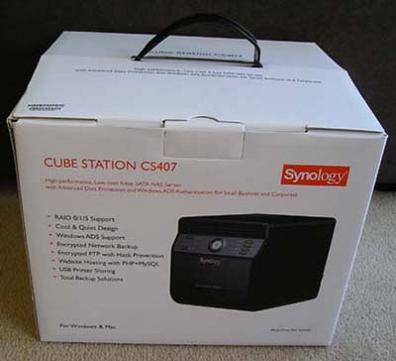
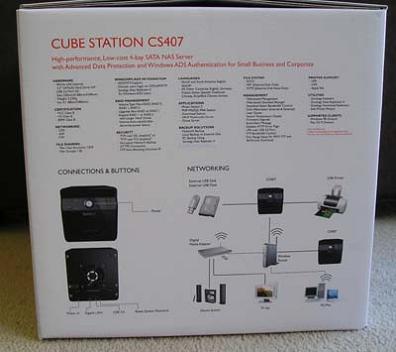
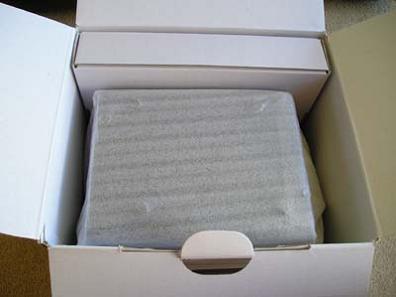
Opening up the box you’re offered with a well packaged CS407 with all the accessories in a separate box. Synology has taken good precautions to protect the device from abuse during shipping.
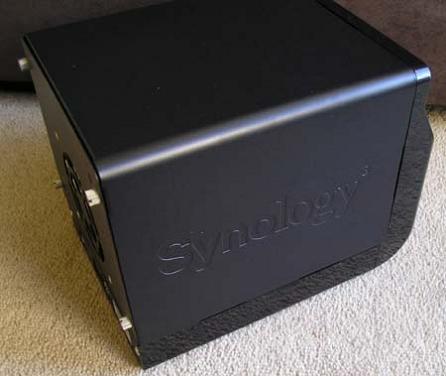
Once all packaging has been removed you’ll be pleasantly surprised how sleek and professional looking the CS407 is. It’s got a shiny plastic front panel which houses the indicators for Status, LAN and HDD activity. The large power button has an outer ring which glows blue when the system is turned on. Due to the added heat generated by 4 hard drives, there are two intake vents at the front covered by a black mesh grill to give it a nice touch.

The Synology logo is imprinted on both sides of the aluminum panel which is secured by thumb screws in the rear.
Going to the rear of the unit you see on large 80mm fan, the power input, Gigabit network port, two USB ports and a reset switch in case you forget the password to login to the web interface.

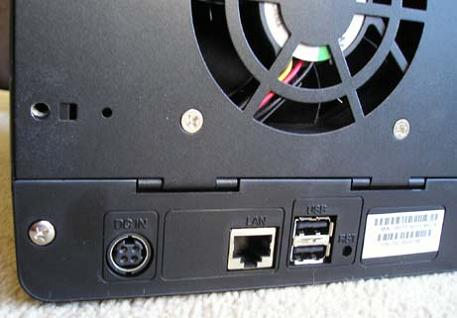
All the accessories, cables and power adapter are provided in a separate box which also contains a detailed user manual. All cables are provided to connect 4 hard drives and cable ties are also provided if you want to arrange the internal cables well.


Next we look at installation of the CS407.
Installation of the drives is very straight forward. You need to first remove the four thumb screws on the rear panel which opens up the rear section like a flap. Thereafter you can take off the aluminum panel as well to secure the drives using the provided screws.

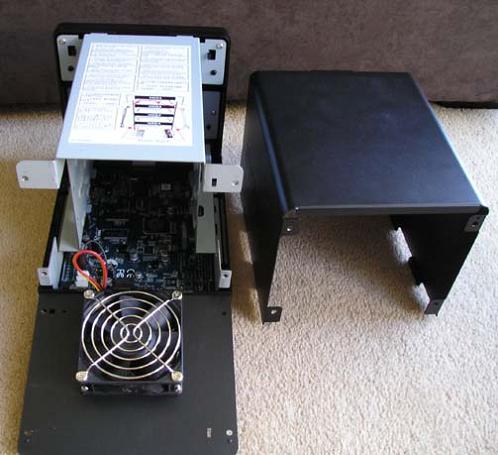
You will also notice the sticker on top of the inside panel that shows you how to install the drives, so make note of that and install the drives according to what has been detailed out. Everything is well labeled out anyway so it’s very unlikely that you will face any problem.
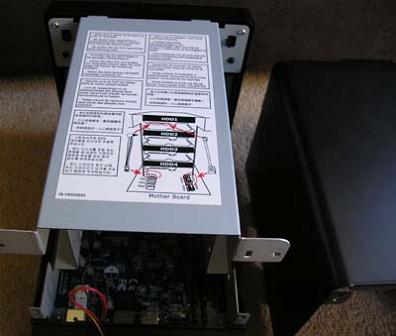
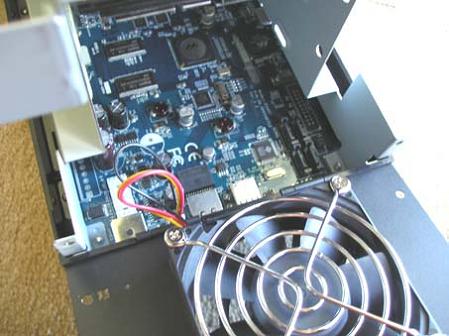
To install a drive you simply slide it in to the slots and secure it with the screws provided. Shown in the picture are with two SATA II drives installed. If you don’t have a requirement to use 4 drives you can make do with just a single drive as well, however no redundancy options will be provided. Ones the drives are in place you can go about connecting the power and data cables to them.
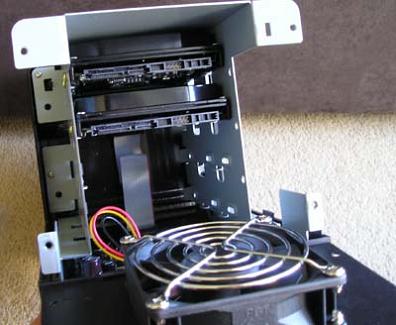
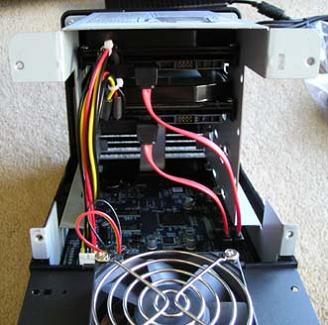
That’s all there is to it, very straight forward and simple. Everything else is done through the web interface so lets get on to the next section.
The unit we received from Synology had the beta firmware released at the time installed. Since we wanted to start from scratch we proceeded to download this beta firmware from the website as the Setup software provided in the CD didn’t work as a newer version was already installed on the CS407.
Once you insert the CD provided you’ll see the following menu.

You click on Setup Synology Server and it’ll search for the CS407 on the network, so make sure it’s connected to your network before you go to this step.
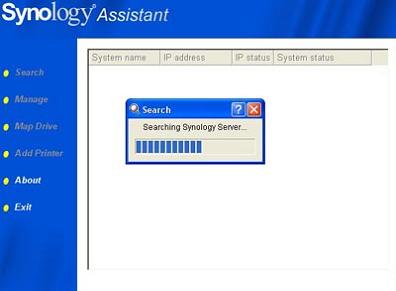
At one point it’ll ask for a installation file where it looks for a file with the extension .PAT. We simply pointed it at the file we downloaded from Synology’s website (Link provided on page 1) and it went about setting up everything for first use.

Once installation is complete you will get the message shown below. Simply open a web browser and point it at the IP address shown and it’ll take you to the initial login screen. (Note that the IP address will be dependant on your router/switch’s IP settings)

From there onwards you can go about setting up your volumes, shared folders, permissions etc. Have a read of our review on the DS207 as we look into these sections in that. Since the screens and functions for these are the same we won’t go into them again. Only addition when creating volumes in the CS407 is that you have a RAID 5 option now which wasn’t available on the DS207. Note that RAID 5 will be available for you to use only if you got 3 or more drives.
Next we look at new additions and improvements made on Synology’s newly released firmware.
There are some new additions and improvements that have been offered with the new firmware release which I’m sure most of you out there would truly enjoy and some of these features are yet to be introduced by competing products.
On the initial login screen you will notice 3 new tabs on the top, namely File Station, Audio Station and Photo Station. To select a particular option you need to select the function you want to use and then login as normal.

A new addition in the management section is the Ez-Internet feature under network services.
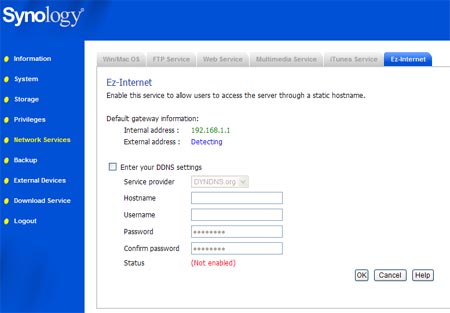
Ones setup this allows users to access the CS407 through a static hostname. Ideally you would have a static IP for this, however if you don’t you can setup Dynamic DNS.
Photo Station 2 + Video:
Another improvement is the Photo Station, which is now called Photo Station 2 + Video. The previous Photo Station though it mentioned it supports video, 9 out of 10 times didn’t actually work. However the latest release easily plays back video clips and is even capable of handling full feature length movies as well. The Photo Station 2 isn’t intended to play full length movies however; its functionality is very similar to YouTube.
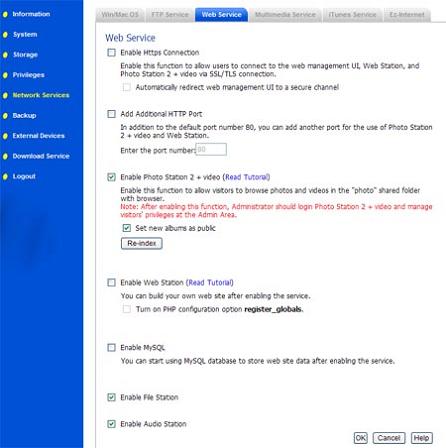
We tried a few small video clips as well as a full length movie to see how well the unit performed. The video clips played just fine and the movie had slight lags occasionally but the CS407 still could handle it. Performance will deteriorate however as more users get on the system and use its resources, nevertheless we’re very happy with this new improvement.
Below is a screen shot of how movies and video clips would appear on the photo station 2 + video.
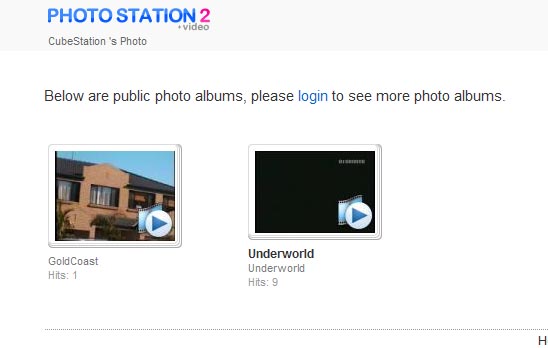
Here’s a screenshot of us playing the movie Underworld on the Photo Station 2.

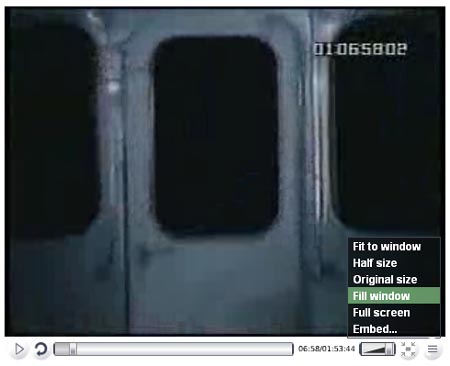
A feature I am impressed about is when playing video clips you have the option to generate java code to embed those clips onto your web page. This is really cool since you no longer need special software to embed videos onto your website, simply select embed and the code will be generated for you. It’s a wonderful tool for all you bloggers out there if you have the need for it.

File Station:
Before file station was introduced, the only way we could create new folders was through the web management console or FTP. Further more, uploading files to folders was done only through FTP or windows file transfer.
However with File Station Synology has introduced a new Windows Explorer like interface where you can create/modify folders and upload files without any additional configurations.

File Station allows you to upload upto 10 files at one time.

You select browse to select the files you need to upload and File Station will upload the files as shown below. Uploading files this way is a lot faster than using windows folders, and I would say it’s almost in par with uploading files using FTP. We uploaded one 100MB and 6.8MB file which took just a few seconds to upload.


Audio Station:
This is probably the best feature yet to be released by Synology and incorporated onto their NAS devices. The Audio Station literally converts the CS407 to a media streamer. Unlike other media streamers such as the Squeezebox we reviewed recently the CS407 cannot be attached to any stereo system. Currently there are a few USB speaker systems supported by the Audio Station. Before we go any further a factor to keep in mind is the Audio station isn’t meant to replace any media streamer out there, rather it’s only meant to compliment the already available features of this NAS system.
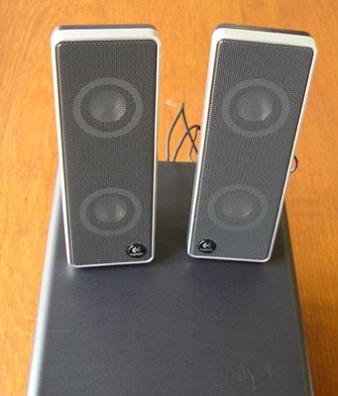
Synology provided us with a Logitech V10 Notebook speaker system which is one of the currently supported USB speaker systems out there. Below are supported speaker systems currently tested by Synology.
| Brand | Model | Tested by |
|---|---|---|
| Altec Lansing | XT1 | Synology |
| Altec Lansing | XT2 | Synology |
| DICOTA | Woofer USB Notebook speakers | Synology |
| Elecom | MS-77 | Synology |
| Genius | SP-i202U | Synology |
| JS | iFun-USB Speaker | Synology |
| Lobos | LB-USP513 2.1 Channel Portable USB Speaker | Synology |
| Logitech | V10 Notebook Speakers | Synology |
| Philips | DGX320 USB Laptop Speaker | Synology |
| Sony | SRS-T10PC USB Speaker | Synology |
| Samsung | Pleomax PSP-800 USB Speaker | User |
| V-Gear | Inlounge U200 | Synology |
We were also sent a Synology Remote which allows you to control the player without using the web interface.
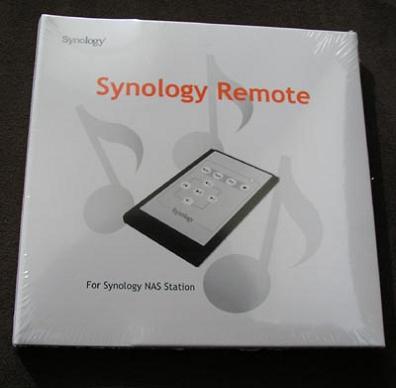

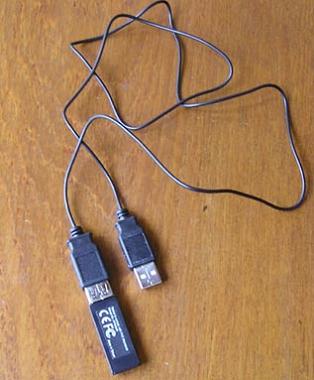
In the back of the remte contains the small receiver unit which needs to plugged into a USB port on the NAS device. Since the USB ports on the CS407 was in the rear, we connected an USB extension cable to bring the receiver to the front.

The Audio Station has 3 main functions. Taking a closer look at the Synology remote identifies these 3 functions; namely Music, Radio and iPOD.

The Music function allows you to play music files uploaded onto the “Music” shared folder. Soon as you login to the Audio station you will see a player with the basic audio controls. On first use you will not see any playlists created, however if you press play it’ll start playing songs stored on the Music shared folder. Using the wireless remote you can control the music as with any conventional remote.

If the USB speakers aren’t connected it will show up clearly about the issue. We didn’t have any issue during the installation of the USB speakers to playing music through the player.
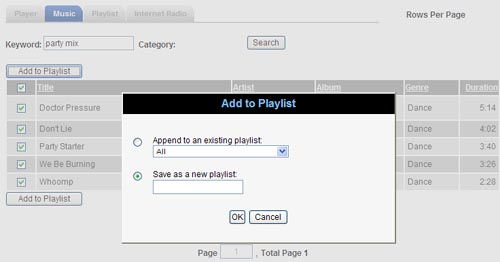
You can create playlists of the songs you have uploaded onto the Music shared folder. There are 2 aspects about the Audio station functionality I wish was improved. Firstly I wish there was a way to control the playlists through the remote and secondly it would be good if the system was able to record in memory the last song played so that you don’t need to start playing from the start after the player is stopped and restarted.
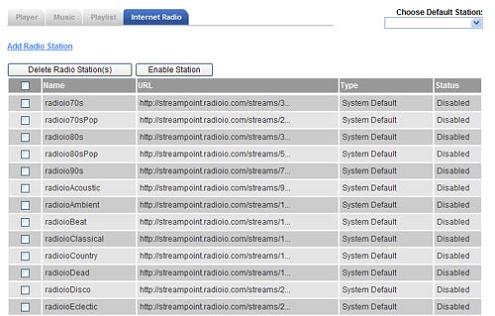
Next the Radio function allows you to stream online radio channels through the CS407. There are 13 channels preset when the unit is sent out and this may change as time moves on, and of course you can also include your own channels. This is again an awesome feature Synology has included in their new firmware release and considering the CS407’s main functionality is providing functions for a NAS it’s really nice to see the manufacturer looking at all these avenues to give the consumer a very feature rich device. I have yet not come across any other NAS manufacturer providing this level of multimedia functions on their devices.
The iPOD function allows you to plug in your iPOD to the USB port on the back of the CS407 and play songs you have stored on it.
All the above functions can be controlled through the Synology Remote and you can keep switching between the functions as you so desire. The latest firmware update currently stands at 0509 so download it through their website if you still have an older release.
If you’re the owner of any other NAS model from Synology the above functions will still work the same. We tested it on the previously reviewed DS207 and everything worked as expected without a hitch.
Alright lets take a look at some of the software available for the CS207 that installs on your PC.
Download Redirector:
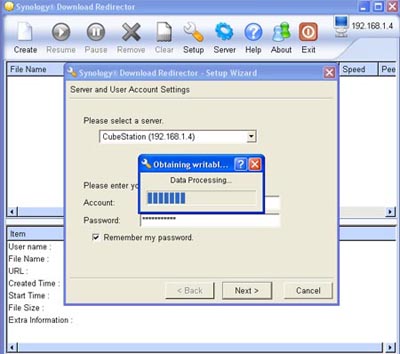
Before you can use the download redirector, you need to enable the download service on the Web management console. The download service allows you to download bit torrents through the CS407 even while your PC is turned off. What the download redirector does is, it makes the process of selecting a torrent and downloading easier by not having to always login to the web management console to setup your downloads.

First you need to setup the download redirector so that it knows which user account to use as well as which folder to store the downloaded files. Thereafter you can go about downloading torrents you wish to get.

Data Replicator II:
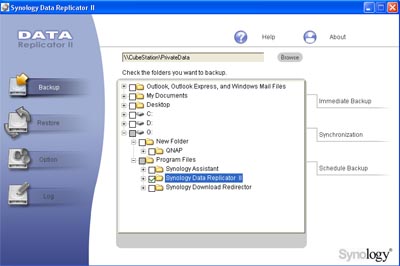
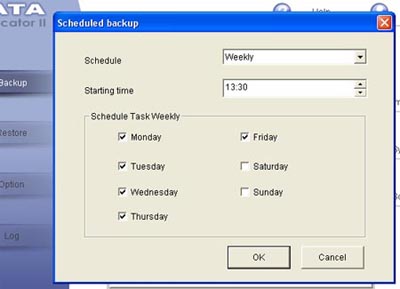
Data Replicator II is a data backup feature that allows you to backup files/folders on your PC or any other PC where the Data Replicator II software is installed. The software’s functionality is pretty straight forward and self explanatory. You can even schedule backups if you wish and it also has a version control system.


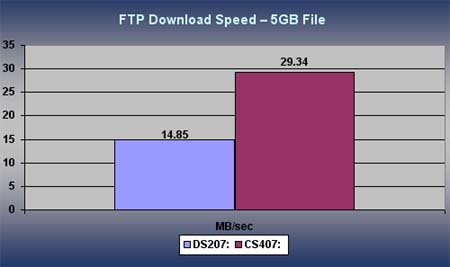
We did a few performance comparisons to see how well the CS407 will perform in a SME environment. Tests were done on the 1GB network setup.
Performance


Conclusion
Synology Inc. has adopted a good direction in terms of placing themselves in the ever competitive NAS device market. Their new firmware release unleashes a unique set of new features that no other competing product yet offers and the CS407 combines good performance for most busy environments. The Audio station and the new Photo Station 2 + Video are two great features that will keep users entertained for many hours in addition to providing good functionality. I particularly like the ease of creating embedded video clips through the Photo Station 2.
The CS407 with 4 drive bays will give users upto 4TB of storage provided you use the supported drives listed by Synology. To compete with some of the high performance NAS products out there, it would be good to see if Synology packs in added features such as redundant Network and power supply inputs as well as increase the CPU speed to around 1GHz which would be truly astounding. Of course the lack of these features is due to a pricing factor and not a limitation on technology.
Since the rear exhaust fan was creating around 25-29dBa of noise we opted to replace it with a SilentX 80mm fan which made the CS407 almost invisible to the hearing while turned on. This is a small mod most users can easily do if the fan noise bothers you. Since there are extra air intakes in the CS407 than the DS207 we found the hard drives operated slightly cooler.
Overall the Cube Station CS407 is a well rounded product with a combination of good features and performance. It’s a good step above the Disk Station DS207 in terms of performance so if your budget can stretch to US$600 do go for the CS407 as you’ll certainly benefit from the extra storage. For the past few weeks we have enjoyed the features offered by the CS407 and it hasn’t failed on us once and we have no hesitation in recommending this product if the budget fits.
